


Wordpress
Securing WordPress with Docker and AWS Lightsail
Summary
In this chapter, we will improve the security of our WordPress stack by moving the database passwords out of the main docker-compose.yml file.
Instead of storing passwords directly inside the Compose file, we will use Docker Secrets in conjunction with Docker Swarm. This allows the mysql, wordpress, and wpcli services to read password values from files mounted inside the running containers.
Sample folder for this chapter:
cd wordpressawslightsailsamples/Securing_WordPress_with_Docker_and_AWS_Lightsail
This folder contains the docker-compose.yml file used throughout this chapter:
Understanding WordPress Security with Docker Compose
What Are Docker Secrets?
We will use Docker Secrets to improve the security of our WordPress stack.
Docker Secrets provide a secure and reliable way to manage sensitive information required by containers at runtime. This includes database passwords, usernames, and other credentials that should not be stored directly inside a docker-compose.yml file.
services:
  mysql:
    image: mysql:latest

    environment:
      MYSQL_ROOT_PASSWORD_FILE: /run/secrets/mysql_root_password
      MYSQL_DATABASE: wordpress
      MYSQL_USER: wordpress
      MYSQL_PASSWORD_FILE: /run/secrets/mysql_password
    ports:
      - "3306:3306"
    secrets:
      - mysql_password
      - mysql_root_password

    volumes:
      - mysql_data:/var/lib/mysql
    networks:
      - wp-network
    deploy:
      replicas: 1
      restart_policy:
        condition: on-failure

  wordpress:
    depends_on:
       - mysql
    image: wordpress:latest
    environment:
       WORDPRESS_DB_HOST: mysql:3306
       WORDPRESS_DB_NAME: wordpress
       WORDPRESS_DB_USER: wordpress
       WORDPRESS_DB_PASSWORD_FILE: /run/secrets/mysql_password

       WORDPRESS_DEBUG: 1

    secrets:
      - mysql_password
    ports:
      - "80:80"
    volumes:
      - wp_html:/var/www/html
    networks:
      - wp-network
    deploy:
      replicas: 1
      restart_policy:
        condition: on-failure

  wpcli:
    image: wordpress:cli
    entrypoint: wp
    working_dir: /var/www/html
    volumes:
      - wp_html:/var/www/html
    environment:
      WORDPRESS_DB_HOST: mysql:3306
      WORDPRESS_DB_NAME: wordpress
      WORDPRESS_DB_USER: wordpress
      WORDPRESS_DB_PASSWORD_FILE: /run/secrets/mysql_password
    secrets:
      - mysql_password
    networks:
      - wp-network
    deploy:
      replicas: 0

volumes:
  wp_html:
    external: true
  mysql_data:
    external: true

networks:
  wp-network:
   driver: overlay

secrets:
  mysql_root_password:
    external: true
  mysql_password:
    external: true
Docker Secrets require Docker Swarm when deploying services with docker stack deploy. Before we can use secrets in our WordPress stack, we need to make sure Swarm mode is enabled on our Docker server, whether it is running on Lightsail or Docker Desktop.
Docker Swarm is Docker’s built-in tool for managing and running containers as services, making it suitable for deploying and managing our WordPress stack.
1. Check Whether Docker Swarm Is Already Enabled
To determine whether the Docker host MyUbuntuInstance is already part of a Docker Swarm, run:
docker -H ssh://MyUbuntuInstance node ls
If Swarm mode has not yet been initialised, you may encounter an error similar to the following:
Error response from daemon: This node is not a swarm manager. Use "docker swarm init" or "docker swarm join" to connect this node to swarm and try again.
This indicates that Docker is running, but the server has not yet been configured as a Swarm manager.
2. Initialise Docker Swarm
To initialise Docker Swarm on the remote Docker host MyUbuntuInstance, run:
docker -H ssh://MyUbuntuInstance swarm init
Docker should return output similar to the following:
Swarm initialized: current node (nyj0pha0ecxkwqd7eld75tv0v) is now a manager.

To add a worker to this swarm, run the following command:

    docker swarm join --token SWMTKN-1-60tdhafh6cak85ol8n5lx4okr9fhfoc3kloncihy4hmdlyf2gw-0nxhnq8gpdau3su0g36ybasu8 172.26.2.42:2377

To add a manager to this swarm, run 'docker swarm join-token manager' and follow the instructions.
This indicates that Swarm mode has been successfully enabled and that the current server is now functioning as the Swarm manager.
3. Check the Swarm Node List Again
Run the following command again to confirm that the node is now part of the Swarm:
docker -H ssh://MyUbuntuInstance node ls
You should see output similar to the following:
ID                            HOSTNAME         STATUS    AVAILABILITY   MANAGER STATUS   ENGINE VERSION
nyj0pha0ecxkwqd7eld75tv0v *   ip-172-26-2-42   Ready     Active         Leader           28.4.0
4. Why Use Docker Secrets?
In the previous chapter, Docker Compose and WordPress, we stored the passwords directly inside the sample docker-compose.yml file:
MYSQL_ROOT_PASSWORD: wordpress
MYSQL_PASSWORD: wordpress
WORDPRESS_DB_PASSWORD: wordpress
While this approach is suitable for a simple example, storing passwords directly in the Compose file is not considered a best practice for secure configurations.
In this chapter, we will move these password values to Docker Secrets. Instead of including the passwords directly in docker-compose.yml, the services will retrieve them from secret files at runtime:
MYSQL_ROOT_PASSWORD_FILE: /run/secrets/mysql_root_password
MYSQL_PASSWORD_FILE: /run/secrets/mysql_password
WORDPRESS_DB_PASSWORD_FILE: /run/secrets/mysql_password
5. Set Up the Docker Secrets
Before deploying the WordPress stack, we need to create the Docker Secrets that will be used by the MySQL and WordPress services.
We will use the docker secret create command to create each secret.
Create the Secrets in Docker
1. Create the mysql_password and mysql_root_password Secrets
When creating a password file for a MySQL Docker Secret, make sure the file does not contain a trailing carriage return or line-feed character. An extra newline becomes part of the password and can cause MySQL authentication errors when the secret is read.
Reference: Docker MySQL newline issue
mysql_password
Windows
Set-Content -Path .\mysql_password.txt -Value "wordpress" -NoNewline:$true
docker -H ssh://MyUbuntuInstance secret create mysql_password .\mysql_password.txt
macOS / Linux
printf '%s' 'wordpress' > mysql_password.txt
docker -H ssh://MyUbuntuInstance secret create mysql_password ./mysql_password.txt
mysql_root_password
Windows
Set-Content -Path .\mysql_root_password.txt -Value "wordpress" -NoNewline:$true
docker -H ssh://MyUbuntuInstance secret create mysql_root_password .\mysql_root_password.txt
macOS / Linux
printf '%s' 'wordpress' > mysql_root_password.txt
docker -H ssh://MyUbuntuInstance secret create mysql_root_password ./mysql_root_password.txt
2. List the Secrets
docker -H ssh://MyUbuntuInstance secret ls
ID                          NAME                  DRIVER    CREATED       UPDATED
z7w3jg9l8mascak2h46i073g0   mysql_password                  4 weeks ago   4 weeks ago
ucu7gnnsaw41wdrt8n2dcdpgd   mysql_root_password             4 weeks ago   4 weeks ago
3. Stop the Docker Compose Stack from Docker Compose and WordPress
Before deploying the updated WordPress stack that uses Docker Secrets, stop the Docker Compose stack created in the previous chapter, Docker Compose and WordPress.
Change to the sample directory containing the previous docker-compose.yml file:
cd wordpressawslightsailsamples/Docker_Compose_and_Wordpress
Shut down and remove the containers and networks created by that Compose project:
docker -H ssh://MyUbuntuInstance compose down
The named volumes remain in place, so your WordPress files and MySQL database data can be used again when you deploy the updated stack.
4. Deploy the New WordPress Stack
Change to the sample directory that contains the new docker-compose.yml file:
cd wordpressawslightsailsamples/Securing_WordPress_with_Docker_and_Lightsail
Deploy the stack:
docker -H ssh://MyUbuntuInstance stack deploy -c docker-compose.yml wordpress-stack
Options Explained
dockerruns the Docker command-line interface.-H ssh://MyUbuntuInstanceconnects Docker to the remote Lightsail instance over SSH.stack deploycreates a new Docker Swarm stack or updates an existing stack.-c docker-compose.ymlspecifies the Docker Compose file that defines the WordPress services, networks, volumes, and secrets.wordpress-stackspecifies the Docker stack name used as a prefix for services, networks, and other deployment resources.
5. Verify the WordPress Stack Services
List the services deployed as part of wordpress-stack:
docker -H ssh://MyUbuntuInstance stack services wordpress-stack
Options Explained
dockerruns the Docker command-line interface.-H ssh://MyUbuntuInstanceconnects Docker to the remote Lightsail instance over SSH.stack serviceslists the services deployed within the specified stack.wordpress-stackspecifies the name of the stack.
The command shows details for each service, including its name, replica status, container image, and published ports.
ID             NAME                        MODE         REPLICAS   IMAGE              PORTS
17zb0ywotjss   wordpress-stack_mysql       replicated   1/1        mysql:latest       *:3306->3306/tcp
v0v2ameyqd2x   wordpress-stack_wordpress   replicated   1/1        wordpress:latest   *:80->80/tcp
f0jxrzcv873r   wordpress-stack_wpcli       replicated   0/0        wordpress:cli
6. Retrieve the Lightsail Static IP Address
Using the AWS CLI, you can retrieve the current static IP address assigned to the Lightsail instance MyUbuntuInstance:
aws lightsail get-static-ip --static-ip-name MyUbuntuInstanceStaticIP --region ap-southeast-2 --profile MyUbuntuProfile
Access WordPress Remotely
Once the containers are running, open a web browser and go to:
http://ipAddress
Replace ipAddress with the static IP address returned by the AWS CLI command.
7. Stopping the WordPress Stack with Docker Stack
To gracefully remove the WordPress stack from the remote Lightsail instance, including its associated services and containers, run:
docker -H ssh://MyUbuntuInstance stack rm wordpress-stack
Further Reading
- Manage secrets securely in Docker Compose
- Manage sensitive data with Docker secrets
- Docker stack services

Using WordPress on AWS Lightsail and Docker
Docker Compose and WordPress
Summary
This chapter walks through building and deploying a WordPress stack with Docker. It begins with a local development environment using Docker Desktop, then moves the same stack to AWS Lightsail using Docker’s remote SSH connection support.
The stack includes three main components:
- WordPress for the website application.
- MySQL for the database.
- WP-CLI for managing WordPress from the command line.
These services are managed together using Docker Compose.
WordPress Docker Compose Stack
Clone the Sample Project
Before starting the WordPress stack, clone the sample project from GitHub:
git clone https://github.com/acj1971/wordpressawslightsailsamples
Then move into the sample folder for this chapter:
cd wordpressawslightsailsamples/Docker_Compose_and_Wordpress
This folder contains the docker-compose.yml file used throughout this chapter:
services:
  mysql:
    image: mysql:latest
    container_name: mysql
    restart: always
    environment:
      MYSQL_ROOT_PASSWORD: wordpress
      MYSQL_DATABASE: wordpress
      MYSQL_USER: wordpress
      MYSQL_PASSWORD: wordpress
    ports:
      - "3306:3306"
    volumes:
      -  mysql_data:/var/lib/mysql
    networks:
      - wp-network

  wordpress:
    image: wordpress:latest
    container_name: wordpress
    restart: always
    environment:
      WORDPRESS_DB_HOST: mysql:3306
      WORDPRESS_DB_NAME: wordpress
      WORDPRESS_DB_USER: wordpress
      WORDPRESS_DB_PASSWORD: wordpress
    ports:
      - "80:80"
    volumes:
      - wp_html:/var/www/html
    depends_on:
      - mysql
    networks:
      - wp-network

  wpcli:
    image: wordpress:cli
    container_name: wpcli
    depends_on:
      - wordpress
    entrypoint: wp
    working_dir: /var/www/html
    volumes:
      - wp_html:/var/www/html
    environment:
      WORDPRESS_DB_HOST: mysql:3306
      WORDPRESS_DB_NAME: wordpress
      WORDPRESS_DB_USER: wordpress
      WORDPRESS_DB_PASSWORD: wordpress
    networks:
      - wp-network

volumes:
  wp_html:
    external: true
  mysql_data:
    external: true

networks:
  wp-network:
Understanding a Docker Compose File for WordPress
Services
services:
The Docker Compose file defines a basic WordPress environment made up of three services. Each service runs in its own container and communicates with the other services through the same Docker network.
MySQL Service
mysql:
The mysql service runs the MySQL database container. It sets the root password, creates the WordPress database, and creates a WordPress database user. The database files are stored in the external mysql_data volume so they can be retained even if the container is recreated.
Image
image: mysql:latest
Using mysql:latest tells Docker to pull the most recent MySQL image rather than a fixed version. This can help keep the setup current, but the underlying version may change over time.
For a more predictable production setup, it is usually safer to pin the image to a specific version, such as 8.4. Upgrading between major versions or LTS releases can introduce compatibility or upgrade issues, so version changes should be planned carefully.
Container Name
container_name: mysql
This assigns the container the fixed name mysql, making it easier to identify and manage when using Docker commands, logs, and other administration tasks.
Restart
restart: always
This tells Docker to automatically restart the container if it stops or if the server is restarted. For a database service such as MySQL, this helps keep the WordPress stack available after a restart.
Environment
environment:
      MYSQL_ROOT_PASSWORD: wordpress
      MYSQL_DATABASE: wordpress
      MYSQL_USER: wordpress
      MYSQL_PASSWORD: wordpress
This section configures the initial MySQL setup. It sets the root password, creates the WordPress database, and creates a WordPress database user with a password. These values are then used by the WordPress container when connecting to MySQL.
In this example, the values are written directly in the Compose file for clarity. In a later chapter, these values will be managed using Docker Secrets for improved security.
Options Explained
MYSQL_ROOT_PASSWORDsets the password for the MySQL root user. In a later step, this value should be managed using Docker Secrets for improved security.MYSQL_DATABASEdefines the database that MySQL creates when the container starts for the first time.MYSQL_USERcreates a database user account when the container starts.MYSQL_PASSWORDsets the password for the database user account. In a later step, this value should be managed using Docker Secrets for improved security.
Ports
ports:
      - "3306:3306"
This maps port 3306 on the host to port 3306 inside the MySQL container. Port 3306 is the standard MySQL port, and this mapping allows external access to the database if required.
WordPress does not require this host port mapping when both containers are connected to the same Docker network. In that case, WordPress connects internally using mysql:3306.
Volumes
volumes:
      - mysql_data:/var/lib/mysql
This volume mapping connects the Docker volume mysql_data to /var/lib/mysql inside the container. This directory is where MySQL stores its database files.
Networks
networks:
      - wp-network
Docker Compose networks allow containers to communicate without relying on fixed IP addresses. When services are connected to the same network, they can find and connect to each other by service name.
In this setup, wp-network provides communication between WordPress, MySQL, and WP-CLI.
WordPress Service
wordpress:
The wordpress service runs the main WordPress website using the selected WordPress image. It connects to the MySQL database using the settings provided in the environment variables. Port 80 is mapped so the site can be opened in a web browser, and the WordPress files are stored in the external wp_html volume.
The WordPress service also depends on the MySQL service, so Docker Compose starts the database container before starting WordPress.
Image
image: wordpress:latest
Using wordpress:latest tells Docker to use the most recent WordPress image available. This can include the latest bug fixes, security updates, and feature improvements.
For production environments, consider using a specific image tag so that updates can be tested before being applied.
Container Name
container_name: wordpress
This assigns the container the fixed name wordpress, making it easier to identify and manage when using Docker commands.
Restart
restart: always
This tells Docker to automatically restart the WordPress container if it stops or if the server is restarted. For a web service such as WordPress, this helps keep the site available when the stack restarts.
Environment
environment:
      WORDPRESS_DB_HOST: mysql:3306
      WORDPRESS_DB_NAME: wordpress
      WORDPRESS_DB_USER: wordpress
      WORDPRESS_DB_PASSWORD: wordpress
This section configures how the WordPress container connects to the MySQL database. It defines the database host, database name, username, and password used by WordPress.
These values must match the MySQL service settings so WordPress can communicate with the database correctly. In this example, the values are written directly in the Compose file for clarity, although Docker Secrets should be used for improved security.
Options Explained
WORDPRESS_DB_HOSTtells WordPress how to connect to the database service. In this setup,mysql:3306points to the MySQL service on the Docker network.WORDPRESS_DB_NAMEdefines the name of the database WordPress will use.WORDPRESS_DB_USERdefines the username WordPress uses when connecting to the database service.WORDPRESS_DB_PASSWORDdefines the password WordPress uses when authenticating with the database service.
For improved security, sensitive credentials such as the database password should be managed using Docker Secrets.
Ports
ports:
      - "80:80"
This maps port 80 on the host to port 80 inside the WordPress container, allowing the site to be accessed in a web browser. Port 443 can be added in a later chapter to support HTTPS.
Volumes
volumes:
      - wp_html:/var/www/html
This volume mapping connects the Docker volume wp_html to /var/www/html inside the container. This is where WordPress stores its site files, including the wp-content folder.
Depends On
depends_on:
      - mysql
The depends_on setting tells Docker Compose to start the mysql service before the wordpress service. This helps ensure that the database container starts first, so WordPress can connect to it during startup.
Networks
networks:
      - wp-network
For the WordPress service, the Docker network allows it to communicate with MySQL and WP-CLI using service names instead of fixed IP addresses. In this setup, wp-network provides that internal connection.
WP-CLI Service
wpcli:
The wpcli service runs the WordPress CLI image, which allows you to manage the WordPress site from the command line. It uses wp as its entry point, works from /var/www/html, and shares the same wp_html volume as the WordPress service so it can access the same site files.
It also uses the same database connection settings as the WordPress service, ensuring WP-CLI commands operate against the same WordPress installation.
Image
image: wordpress:cli
Using wordpress:cli tells Docker to use the WordPress CLI image. This image provides the wp command-line tool for managing a WordPress site.
Container Name
container_name: wpcli
This assigns the container the fixed name wpcli, making it easier to identify and manage when using Docker commands.
Depends On
depends_on:
      - wordpress
This setting tells Docker Compose to start the wordpress service before the wpcli container.
Entrypoint
entrypoint: wp
This configures the container to use wp as its default command. As a result, WP-CLI commands can be run without specifying wp each time.
For example:
docker compose run --rm wpcli plugin list
Working Directory
working_dir: /var/www/html
This specifies /var/www/html as the working directory inside the container. It helps ensure that commands run from the WordPress root directory.
Volumes
volumes:
      - wp_html:/var/www/html
This volume mapping connects the Docker volume wp_html to /var/www/html inside the container. By sharing the same volume as the WordPress service, WP-CLI can work with the same WordPress files.
Environment
environment:
      WORDPRESS_DB_HOST: mysql:3306
      WORDPRESS_DB_NAME: wordpress
      WORDPRESS_DB_USER: wordpress
      WORDPRESS_DB_PASSWORD: wordpress
The environment variables in the wpcli service mirror those used by the wordpress service because both containers connect to the same WordPress database. This ensures that WP-CLI commands operate on the same site data and configuration as the main WordPress application.
Networks
networks:
      - wp-network
For the wpcli service, the Docker network allows it to communicate with WordPress and MySQL using service names instead of fixed IP addresses. In this setup, wp-network provides that internal connection.
Volumes
volumes:
  wp_html:
    external: true
  mysql_data:
    external: true
This section defines two named Docker volumes: wp_html and mysql_data.
wp_htmlstores the WordPress website files.mysql_datastores the MySQL database files.external: truetells Docker Compose to use an existing Docker volume rather than creating a new one.
This approach helps ensure that important data is stored independently of the containers, allowing it to persist even if the containers are recreated or updated.
Networks
networks:
  wp-network:
The networks section defines a custom Docker network named wp-network.
Docker Compose networks provide a straightforward way for containers to communicate without relying on fixed IP addresses. By connecting services to the same network, Docker allows them to discover and connect to one another using their service names.
In this stack, wp-network enables communication between WordPress, MySQL, and WP-CLI.
Start the WordPress Stack Using Docker Desktop
From inside the project folder wordpressawslightsailsamples/Docker_Compose_and_Wordpress, run:
docker compose up -d
Options Explained
docker composemanages multi-container applications using a Compose file.upcreates and starts the services defined indocker-compose.yml.-druns the containers in the background in detached mode.
What Starts Automatically
Docker Compose will create and start the following services:
mysqlinitializes the database and stores data in themysql_datavolume.wordpressruns the web server and serves the site on port80.wpcliprovides the command-line tool for managing the WordPress site.
On the first run, Docker downloads the required images:
mysqlwordpresswordpress:cli
Docker then creates the containers, connects them to the wp-network, and attaches the external volumes wp_html and mysql_data to the appropriate services.
Verify the Stack Is Running
Option 1: Command Line
Run the following command:
docker compose ps
You should see the WordPress, MySQL, and WP-CLI services listed.
Option 2: Docker Desktop UI
Open Docker Desktop and locate the project container group, for example:
wordpress-docker
You should see the following services listed:
mysqlwordpresswpcli
You can click each container to:
- View logs.
- Inspect environment variables.
- Restart or stop the container.
Option 3: Start the Stack and Configure WordPress with WP-CLI
Start the WordPress stack in the background:
docker compose up -d
Once the containers are running, you can use WP-CLI to complete the initial WordPress setup from the command line. This will be covered in more detail in the Docker and WP-CLI chapter.
docker compose run --rm wpcli core install --url="http://localhost" \
  --title="My WordPress Site" \
  --admin_user="admin" \
  --admin_password="password" \
  --admin_email="admin@example.com"
Options Explained
docker composemanages multi-container applications using a Compose file.run --rmstarts a temporary container and removes it when the command finishes.wpcliis the Docker Compose service that runs WP-CLI.core installruns thewp core installcommand.--url="http://localhost"sets the URL for the new site.--title="My WordPress Site"sets the name of the new site.--admin_user="admin"sets the username for the site administrator.--admin_password="password"sets the password for the administrator account. If this option is not supplied, WordPress can generate a secure password automatically.--admin_email="admin@example.com"sets the email address for the administrator account.
Access WordPress
Once the containers are running, open a web browser and go to:
http://localhost
This opens the local WordPress site. On the first visit, WordPress should display the initial setup screen unless the site has already been configured with WP-CLI.
View Logs for Troubleshooting
To view container logs, run:
docker compose logs -f
Options Explained
docker composemanages multi-container applications using a Compose file.logsdisplays log output from the containers.-ffollows the logs in real time.
Stop the Stack
When you have finished working with the WordPress stack, you can stop the running containers using:
docker compose down
Because this project uses external Docker volumes, the following volumes are retained:
wp_htmlfor the WordPress website files.mysql_datafor the MySQL database files.
Use Docker Compose with AWS Lightsail
The same Docker Compose stack can also be managed remotely on an AWS Lightsail instance. In this example, Docker connects to the Lightsail server over SSH using the Docker -H option.
Verify Remote Docker Access
First, confirm that Docker is available on your Lightsail instance:
docker -H ssh://MyUbuntuInstance info
Options Explained
dockerruns the Docker command-line interface.-H ssh://MyUbuntuInstancetells Docker to connect to the remote Docker host namedMyUbuntuInstanceover SSH.inforequests detailed information about the Docker environment on the remote host.
Start the WordPress Stack with Docker Compose
Once remote Docker access has been verified, start the WordPress, MySQL, and WP-CLI services on MyUbuntuInstance:
docker -H ssh://MyUbuntuInstance compose up -d
Options Explained
dockerruns the Docker command-line interface.-H ssh://MyUbuntuInstanceconnects Docker to the remote Lightsail instance over SSH.composeruns Docker Compose commands against the selected Docker host.upcreates and starts the services defined indocker-compose.yml.-druns the containers in the background in detached mode.
Retrieve the Lightsail Static IP Address
Using the AWS CLI, you can retrieve the current static IP address assigned to the Lightsail instance MyUbuntuInstance:
aws lightsail get-static-ip --static-ip-name MyUbuntuInstanceStaticIP --region ap-southeast-2 --profile MyUbuntuProfile
Access WordPress Remotely
Once the containers are running, open a web browser and go to:
http://ipAddress
Replace ipAddress with the static IP address returned by the AWS CLI command.
Stop the WordPress Stack with Docker Compose
To gracefully stop the WordPress stack running on the remote Lightsail instance and remove the containers associated with the application, run:
docker -H ssh://MyUbuntuInstance compose down
Because this project uses external Docker volumes, the following volumes are retained:
wp_htmlfor the WordPress website files.mysql_datafor the MySQL database files.
This means the site files and database are preserved even after the containers are removed.
Further Reading
- Docker Compose
- Services in Docker Compose
- MySQL Docker Official Image
- MySQL Docker environment variables
- Networking in Compose
- WordPress Docker Official Image
- WP-CLI
- wp core install
Using WordPress on AWS Lightsail and Docker
AWS Lightsail Docker Volume
Summary
This guide shows you how to attach an AWS Lightsail block storage disk to an Ubuntu instance, format and mount it at /data, and configure Docker so its named volumes live on that disk. This keeps your WordPress and database data on the larger block storage volume and ensures it persists across reboots (and can survive instance rebuilds if you reattach the disk).
1. Confirm your Region and Availability Zone
Before you create the disk, you need the instance’s Availability Zone (AZ). The AWS Lightsail create-disk command won’t work unless you provide –availability-zone.
lightsail-instance-config.json: Get the Availability Zone from thelightsail-instance-config.jsonfile created in Lightsail Instance for DockerAWS CLI (pull the AZ directly from Lightsail):
aws lightsail get-instances --query "instances[?name=='MyUbuntuInstance'].location.availabilityZone | [0]" --output text --profile MyUbuntuProfile
Options explained
aws lightsail get-instancesThis command tells the AWS CLI to return details for all instances in the account/region tied to the selected profile.--query "instances[?name=='MyUbuntuInstance'].location.availabilityZone | [0]"AWS CLI User Guide – Filtering output with –query.--output textPrints the result as plain text.--profile MyUbuntuProfileSelects which AWS CLI profile to use. This is helpful if you have multiple accounts or credentials configured.
2. Create the Lightsail disk
Create a new Lightsail block storage disk using the aws lightsail aws lightsail create-disk command, and provisioning in the same Availability Zone as your existing instance.
aws lightsail create-disk --disk-name MyUbuntuProfile-Docker-Volume-1 --region ap-southeast-2a --size-in-gb 32 --profile MyUbuntuProfile
Options explained
aws lightsail create-diskThis command tells the AWS CLI to create a new block storage disk.--disk-name MyUbuntuProfile-Docker-Volume-1Choose a unique and descriptive name for the disk in your Lightsail account.--region ap-southeast-2aDespite the flag name, Lightsail expects the AZ for block storage here (e.g., ap-southeast-2a).--size-in-gb 32Disk size. You choose based on WordPress + DB growth, uploads, backups, etc.--profile MyUbuntuProfileSelects which AWS CLI profile to use. This is helpful if you have multiple accounts or credentials configured.
3. Attach the disk to your instance
Now that the disk is created MyUbuntuProfile-Docker-Volume-1, attach it to the instance MyUbuntuInstance so Ubuntu can detect it as a new drive.
aws lightsail attach-disk --disk-name MyUbuntuProfile-Docker-Volume-1 --disk-path /dev/xvdf --instance-name MyUbuntuInstance --profile MyUbuntuProfile
Options explained
aws lightsail attach-diskThis command tells the AWS CLI to attach a block storage disk to an instance.--disk-name MyUbuntuProfile-Docker-Volume-1The name of the Lightsail disk you created earlier. This must match exactly.--disk-path /dev/xvdfDevice name Ubuntu will see for the newly attached disk in Ubuntu instance. This is the attachment path; in Ubuntu, it may appear as /dev/xvdf or sometimes /dev/nvme, depending on the virtualization.--instance-name MyUbuntuInstanceInstance name you’re attaching the disk to.--profile MyUbuntuProfileSelects which AWS CLI profile to use. This is helpful if you have multiple accounts or credentials configured.
4. Verify attachment
Now let’s confirm the command returns a quick status summary for the Lightsail block storage disk.
aws lightsail get-disk --disk-name MyUbuntuProfile-Docker-Volume-1 --query 'disk.{name:name,state:state,attachedTo:attachedTo,path:path,isAttached:isAttached}' --output table --profile MyUbuntuProfile
Options explained
aws lightsail get-diskThis command tells the AWS CLI to retrieve details about one block storage disk.--disk-name MyUbuntuProfile-Docker-Volume-1Which disk to look up in Lightsail disk resource.--query 'disk.{name:name,state:state,attachedTo:attachedTo,path:path,isAttached:isAttached}'Using aJMESPathquery extracting from the top-level disk object.--output tableRender the result as a human-readable ASCII table – Setting the output format in the AWS CLI--profile MyUbuntuProfileSelects which AWS CLI profile to use. This is helpful if you have multiple accounts or credentials configured.
Output
-----------------------------------------------------------------
|                            GetDisk                            |
+------------+--------------------------------------------------+
|  attachedTo|  MyUbuntuProfile-Docker-Volume-1-docker-1        |
|  isAttached|  True                                            |
|  name      |  MyUbuntuProfile-Docker-Volume-1                 |
|  path      |  /dev/xvdf                                       |
|  state     |  in-use                                          |
+------------+--------------------------------------------------+
5. Connect to the Ubuntu instance via SSH
Next, connect to the Lightsail instance via SSH so we can format and mount the disk on the Ubuntu server.
ssh MyUbuntuInstance
6. Identify the new disk in the Ubuntu Instance
Next, we need to identify the disk that will be mounted on the system.
sudo lsblk
Options explained
sudoRun the command with administrator privileges.lsblkRun the command to display all disks, partitions, and mount points currently available on the Ubuntu server.
Output
NAME         MAJ:MIN RM  SIZE RO TYPE MOUNTPOINTS

nvme1n1      259:5    0   32G  0 disk
7. Create a filesystem on the new disk (only if empty)
Next we need to format the disk /dev/nvme1n1 with the XFS filesystem.
sudo mkfs -t xfs /dev/nvme1n1
Options explained
sudoRun the Linux command with administrator privileges.mkfsIs the Linux commandmake filesystem, create a new filesystem on the target disk.-t xfsCreate the disk using the XFS filesystem type./dev/nvme1n1Disk device being formatted.
Output
meta-data=/dev/nvme1n1           isize=512    agcount=16, agsize=524288 blks
         =                       sectsz=512   attr=2, projid32bit=1
         =                       crc=1        finobt=1, sparse=1, rmapbt=1
         =                       reflink=1    bigtime=1 inobtcount=1 nrext64=0
data     =                       bsize=4096   blocks=8388608, imaxpct=25
         =                       sunit=1      swidth=1 blks
naming   =version 2              bsize=4096   ascii-ci=0, ftype=1
log      =internal log           bsize=4096   blocks=16384, version=2
         =                       sectsz=512   sunit=1 blks, lazy-count=1
realtime =none                   extsz=4096   blocks=0, rtextents=0
8. Create a mount point (folder) and mount the disk
First, create a folder that will be used as the disk’s mount location.
sudo mkdir -p /data
Next, mount the disk to that folder.
sudo mount /dev/nvme1n1 /data
Options explained
sudoRun the command with administrator privileges.mountIs the Linux command used to attach a storage device to the filesystem./dev/nvme1n1is the block device representing the disk that was identified./dataThis is the folder where the disk will be accessible and mounted.
Finally, confirm that the disk is mounted successfully using df utility command.
df -h | grep /data
Options explained
dfShows disk usage and mounted filesystems.-hDisplays sizes in GB, MB, etc.grep /dataFilters the output to show only the/datamount.
This mount is temporary and will disappear after a reboot. In the next step, the disk will be added to /etc/fstab so it automatically mounts when the server starts.
9. Persist the mount using /etc/fstab on reboot
Before modifying the filesystem table, it is recommended to create a backup of the file. If an error is introduced while editing /etc/fstab, the system may fail to mount disks correctly during startup.
sudo cp /etc/fstab /etc/fstab.orig
We need to use the UUID (Universally Unique Identifier) of the disk instead of the device name.
This is more reliable because device names like /dev/nvme1n1 can sometimes change after reboot.
sudo blkid /dev/nvme1n1
Options explained
sudoRun the command with administrator privileges.blkidUtility command that shows block device attributes, such as UUID , filesystem type and label./dev/nvme1n1Block device representing the disk.
Output
/dev/nvme1n1: UUID="92a4a81e-d66f-420e-9f7a-234cbb5c681e" BLOCK_SIZE="512" TYPE="xfs"
Open the filesystem table configuration file, this file controls which disks are mounted automatically when the system boots.
sudo nano /etc/fstab
Add the following line to the bottom of the file, please tab.
UUID=92a4a81e-d66f-420e-9f7a-234cbb5c681e /data xfs defaults,nofail 0 2
Options explained
UUID=92a4a81e-d66f-420e-9f7a-234cbb5c681eUnique identifier for the disk./dataFolder where the disk will be mounted and made accessible.xfsFilesystem type used when the disk was formatted.defaults,nofailStandard mount options. nofail prevents boot errors if the disk is missing.0Dump backup option, which is typically set to 0 to disable filesystem backups.2Order for filesystem checks during boot.
10. Reboot test
Restart the server to confirm the disk mounted /data automatically.
sudo reboot
Next, reconnect to the Lightsail instance via SSH.
ssh MyUbuntuInstance
Finally, run the df command to confirm the disk is mounted successfully.
df -h | grep /data
Output
/dev/nvme1n1 32G 660M 32G 3% /data
11. Adding Docker Volume
We need to ensure Docker starts after /data is mounted. it is important that /data is available before Docker starts.
If Docker starts before /data is mounted during system boot, it may create empty directories under /data. This can cause containers to start with missing or incorrect data.
To prevent this issue, add a dependency so Docker waits until /data is mounted before starting.
Connect to the Lightsail instance via SSH.
ssh MyUbuntuInstance
Create a systemd override for Docker, this opens a small override file.
sudo systemctl edit docker
Add the dependency. This tells systemd that Docker must wait until the /data mount is available before starting.
[Unit]
RequiresMountsFor=/data
Reload systemd and restart Docker or reboot.
sudo systemctl daemon-reexec
sudo systemctl daemon-reload
sudo systemctl restart docker
Or.
sudo reboot
12. Preparing Docker Volumes for WordPress for Lightsail
Create the folders under /data that will hold the persistent data for the WordPress files and MySQL database. Docker will later bind the named volumes to these locations.
Create the folders on /data that will hold the Docker volume data.
sudo mkdir -p /data/volumes/wp_html
sudo mkdir -p /data/volumes/mysql
Create named Docker volumes backed by those folders on /data.
docker -H ssh://MyUbuntuInstance volume create wp_html --driver local --opt type=none --opt device=/data/volumes/wp_html --opt o=bind
docker -H ssh://MyUbuntuInstance volume create mysql_data --driver local --opt type=none --opt device=/data/volumes/mysql --opt o=bind
Options explained
docker volumecreate creates a new Docker volume, wp_html and mysql_data are the names of the volumes.--driverlocal tells Docker to use the local volume driver.--opt type=noneis used when creating a bind-backed volume.--opt device=...points Docker to the folder on your machine.--opt o=bindtells Docker to bind that folder into the volume.
Verify Volumes
Check that Docker is using your local folders.
docker -H ssh://MyUbuntuInstance volume inspect wp_html
Output
Docker will return JSON output describing each volume.
[
    {
        "CreatedAt": "2025-12-16T11:14:48Z",
        "Driver": "local",
        "Labels": null,
        "Mountpoint": "/var/lib/docker/volumes/wp_html/_data",
        "Name": "wp_html",
        "Options": {
            "device": "/data/volumes/wp_html",
            "o": "bind",
            "type": "none"
        },
        "Scope": "local"
    }
]
docker volume inspect mysql_data
Output
[
    {
        "CreatedAt": "2025-12-16T11:16:01Z",
        "Driver": "local",
        "Labels": null,
        "Mountpoint": "/var/lib/docker/volumes/mysql_data/_data",
        "Name": "mysql_data",
        "Options": {
            "device": "/data/volumes/mysql",
            "o": "bind",
            "type": "none"
        },
        "Scope": "local"
    }
]
Further Reading
- Create and attach Lightsail block storage disks to Ubuntu instances
- Expand storage and performance with Lightsail block storage disks
- AWS CLI – create-disk
- Regions and Availability Zones for Lightsail
- JMESPath is a query language for JSON
- Introduction to fstab
Using WordPress on AWS Lightsail and Docker
Docker Desktop volumes for WordPress
Summary
1. Create Local Folders for Data
Choose a location on your computer where Docker will store persistent WordPress and MySQL data.
Windows
mkdir C:\docker-data\wp_html
mkdir C:\docker-data\mysql
Output
- C:\docker-data\wp_html for WordPress files
- C:\docker-data\mysql for MySQL database files
macOS / Linux
mkdir -p ~/docker-data/wp_html
mkdir -p ~/docker-data/mysql
Output
- ~/docker-data/wp_html for WordPress files
- ~/docker-data/mysql for MySQL database files
2. Create Bind-Backed Docker Volumes
Create named Docker volumes that bind to the local folders you created earlier. This allows Docker to store WordPress and database data in those folders instead of inside Docker’s default internal storage.
Windows
docker volume create wp_html --driver local --opt type=none --opt device=C:\docker-data\wp_html --opt o=bind
docker volume create mysql_data --driver local --opt type=none --opt device=C:\docker-data\mysql --opt o=bind
macOS / Linux
docker volume create wp_html --driver local --opt type=none --opt device=$HOME/docker-data/wp_html --opt o=bind
docker volume create mysql_data --driver local --opt type=none --opt device=$HOME/docker-data/mysql_data --opt o=bind
Options explained
docker volumecreates a new Docker volume. In this example, wp_html and mysql_data are the names of the volumes being created.--driverlocal tells Docker to use the local volume driver.--opt type=noneis used when creating a bind-backed volume.--opt device=...tells Docker which folder on your machine should be used for the volume.--opt o=bindtells Docker to bind that folder into the volume.
3. Verify the Docker Volumes
Check that Docker is using the local folders you mapped.
docker volume inspect wp_html
Output
Docker will return JSON describing the volume configuration.
[
    {
        "CreatedAt": "2026-03-17T12:01:21Z",
        "Driver": "local",
        "Labels": {},
        "Mountpoint": "/var/lib/docker/volumes/wp_html/_data",
        "Name": "wp_html",
        "Options": {
            "device": "C:\\docker-data\\wp_html",
            "o": "bind",
            "type": "none"
        },
        "Scope": "local"
    }
]
docker volume inspect mysql_data
Output
[
    {
        "CreatedAt": "2026-03-17T12:00:51Z",
        "Driver": "local",
        "Labels": {},
        "Mountpoint": "/var/lib/docker/volumes/mysql_data/_data",
        "Name": "mysql_data",
        "Options": {
            "device": "C:\\docker-data\\mysql",
            "o": "bind",
            "type": "none"
        },
        "Scope": "local"
    }
]
4. Start Your Containers Using the Volumes
After the volumes have been created, they can be attached to your WordPress and database containers. When the containers use wp_html and mysql_data, Docker stores the data in the local folders you configured earlier rather than in Docker’s default internal storage.
A typical setup maps
wp_html -> /var/www/html
mysql_data -> /var/lib/mysql
You can then start your containers with Docker Compose, depending on how your project is structured. Because the data is stored outside the containers, it remains available even if the containers are stopped, removed, or recreated.
This gives you a straightforward Docker Desktop development setup with persistent storage. WordPress files remain available between container restarts, MySQL data is retained even if containers are rebuilt, and the files stay accessible from the host machine. Another advantage is that no manual disk formatting or mounting is required.
Because this approach works across Windows, macOS, and Linux with Docker Desktop, it is well suited to local WordPress development, plugin testing, theme experimentation, or preparing an application before deploying it to a cloud server.
Further Reading
Using WordPress on AWS Lightsail and Docker
AWS Lightsail Instance for Docker
Summary
This chapter guides you through setting up an Ubuntu Lightsail instance pre-configured for Docker, enabling you to deploy and manage containers like WordPress and MySQL Server quickly.
You’ll learn how to:
- Generate and secure a custom SSH key pair to access the instance.
- Use AWS CLI commands and configuration files to launch your Lightsail instance.
- Apply a user-data script to automatically install Docker, Docker Compose, and supporting tools during creation.
- Assign and attach a static IP address for reliable access.
- Connect via SSH and verify your environment.
- Clean up resources when they’re no longer needed.
By the end of this chapter, you’ll have a fully operational AWS Lightsail instance ready to run Docker containers for WordPress, MySQL and other applications in a secure and repeatable way.
Create a Custom SSH Key Pair
Before running ‘aws lightsail create-instances’, you need an SSH key pair so the AWS account can associate it with the new instance. The key pair provides the secure SSH credentials required to connect to the instance after it is created. If you skip this step, you won’t have a valid .pem file to authenticate with your server. By creating the key pair first, you ensure that when you launch the instance, it can be accessed securely using your private key immediately.
Create a directory (e.g., MyUbuntuInstance).
1. Create the SSH key pair
Run this in PowerShell (Windows) or bash (Linux/macOS):
aws lightsail create-key-pair --region ap-southeast-2 --key-pair-name MyUbuntuInstanceKeyPair --query privateKeyBase64 --output text > MyUbuntuInstanceKeyPair.pem --profile MyUbuntuProfile
Options explained:
aws lightsail create-key-pairThis command tells the AWS Cli to create a new Lightsail SSH key pair.--region ap-southeast-2Specifies the AWS region (Sydney). If you don’t set this, the AWS Cli defaults to whatever is configured in your AWS profile.--key-pair-name MyUbuntuInstanceKeyPairThe name you’re giving to the new key pair in Lightsail. You’ll use this name later when creating an instance with –key-pair-name.--query privateKeyBase64Filters the command’s JSON output so that only the private key (in base64-encoded text) is returned, not the whole JSON response.--output textEnsures the result is output as plain text instead of JSON. Without this, you’d get JSON formatting that isn’t usable as a .pem file.> MyUbuntuInstanceKeyPair.pemRedirects the output (the private key) into a file called MyUbuntuInstanceKeyPair.pem. This file is what you’ll use with SSH.--profile MyUbuntuProfileSelects which AWS CLI profile to use. This is helpful if you have multiple accounts or credentials configured.
2. Fix permissions
SSH requires that your .pem file is locked down. SSH refuses to use a .pem file if it’s too “open” (i.e., readable by other users). Locking it down ensures only you can read it.
Linux/macOS:
chmod 600 MyUbuntuInstanceKeyPair.pem
Options explained:
chmod– Change file mode (permissions).600– Sets permissions so that:- Owner: Read and Write
- Group: No permissions
- Others: No permissions
Windows PowerShell:
icacls.exe MyUbuntuInstanceKeyPair.pem /inheritance:r
Options explained:
icacls.exeA Windows command-line tool used to view or modify file and folder access control lists (ACLs).MyUbuntuInstanceKeyPair.pemTarget file./inheritance:rRemoves inherited permissions (so the file doesn’t inherit broad access rights from the folder).
icacls.exe MyUbuntuInstanceKeyPair.pem /grant:r "$($env:USERNAME):(R)"
/grant:rGrants permissions, replacing any existing ones."$($env:USERNAME)"Expands to your current Windows username.:(R)Read-only permission.
3. List SSH Key pair names
aws lightsail get-key-pairs --region ap-southeast-2 --query "keyPairs[].name" --output text --profile MyUbuntuProfile
4. Deleting an SSH Key Pair
If you no longer need the key, delete both to keep your system and AWS environment tidy.
1. Delete the local .pem file
Linux/macOS:
rm MyUbuntuInstanceKeyPair.pem
Windows PowerShell:
icacls "MyUbuntuInstanceKeyPair.pem" /inheritance:e
/inheritance:ere-enables permission inheritance from the parent folder.- This means the file will now take on the normal ACLs (Access Control Lists) from its directory again, instead of being locked to just the user.
icacls "MyUbuntuInstanceKeyPair.pem" /reset
/resetwipes any custom permissions on the file.- After this, only the default inherited permissions apply (e.g. Administrators, your user, System). This step ensures you (and Windows) can manage or delete the file normally.
Remove-Item "MyUbuntuInstanceKeyPair.pem" -Force
Remove-Itemdeletes the file.-Forcebypasses prompts and ignores hidden/system attributes if set.- Now that inheritance is restored and ACLs are reset, Windows lets you remove the file without Access Denied errors.
2. Delete the SSH key pair from AWS Lightsail
First, check which key pairs exist in your region:
aws lightsail get-key-pairs --region ap-southeast-2 --query "keyPairs[].name" --output text --profile MyUbuntuProfile
Then delete the one you no longer need:
aws lightsail delete-key-pair --key-pair-name MyUbuntuInstanceKeyPair --region ap-southeast-2 --profile MyUbuntuProfile
Creating a Lightsail Instance
aws lightsail create-instances --cli-input-json file://lightsail-instance-config.json --user-data file://userdata.bash --profile MyUbuntuProfile
1. Create the Configuration File
Create a new file named lightsail-instance-config.json and add:
{
  "instanceNames": ["MyUbuntuInstance"],
  "availabilityZone": "ap-southeast-2a",
  "blueprintId": "ubuntu_24_04",
  "bundleId": "small_3_2",
  "userData":  "",
  "keyPairName": "MyUbuntuInstanceKeyPair",
  "tags": [
    {
      "key": "Docker",
      "value": "WordPress-Docker"
    }
  ]
}
2. Create external user-data file
Create a new file named userdata.bash and add:
#!/bin/bash

LOGFILE="/var/log/userdata.log"

log() {
    echo "$(date '+%Y-%m-%d %H:%M:%S') - $*" >> "$LOGFILE"
}

log "Start user-data script"

log "sudo apt-get update -y"
sudo apt-get update -y

log "apt-get install -y libarchive-tools"
sudo apt-get install -y libarchive-tools

log "apt install -y zip"
sudo apt install -y zip

log "Install BashNovusTools"
sudo mkdir -p /etc/bashnovustools && curl -L https://github.com/novuslogic/BashNovusTools/releases/download/v0.1.3/BashNovusTools.v0.1.3.zip -o /tmp/bashnovustools.zip && sudo bsdtar -xf /tmp/bashnovustools.zip -C /etc/bashnovustools && sudo chmod +x /etc/bashnovustools/bin/*.sh && echo 'export PATH=\"/etc/bashnovustools/bin:$PATH\"' | sudo tee /etc/profile.d/bashnovustools.sh

# Update Ubuntu to latest packages
log "Update Ubuntu to latest packages"
sudo /etc/bashnovustools/bin/update-ubuntu.sh

# Install Docker Engine
log "Install Docker Engine"
sudo /etc/bashnovustools/bin/install-docker-engine.sh

# Install Docker Compose
log "Install Docker Compose"
sudo /etc/bashnovustools/bin/install-docker-compose.sh

# Add ubuntu user to docker group (will take effect on next login)
log "Add ubuntu user to docker group"
sudo /usr/sbin/usermod -aG docker ubuntu || true


log "End user-data script"
Create a static IP
1. Pick a unique name for it (e.g. MyUbuntuInstanceStaticIP):
aws lightsail allocate-static-ip --static-ip-name MyUbuntuInstanceStaticIP --region ap-southeast-2 --profile MyUbuntuProfile
2. Attach a public static IP address to the instance
aws lightsail attach-static-ip --static-ip-name MyUbuntuInstanceStaticIP --instance-name MyUbuntuInstance --region ap-southeast-2 --profile MyUbuntuProfile
3. Verify
aws lightsail get-static-ip --static-ip-name MyUbuntuInstanceStaticIP --region ap-southeast-2 --profile MyUbuntuProfile
4. Test the SSH Connection
Replace <STATIC_IP> with the address returned above:
ssh -i MyUbuntuInstanceKeyPair.pem ubuntu@<STATIC_IP>
If you see a “bad permissions” warning on Linux/macOS, re-run chmod 600 MyUbuntuInstanceKeyPair.pem.
On Windows, re-apply the icacls steps.
Clean up resources
Are you finished with your AWS Lightsail instance? Before you move on, take a few minutes to clean up all associated resources. Not only will this help you avoid surprise charges, but it will also keep your AWS account organized and secure.
1. Release the Static IP
If you have a static IP attached to your instance, make sure to release it first. Otherwise, AWS may keep charging you for the reserved IP.
aws lightsail release-static-ip --static-ip-name MyUbuntuInstanceStaticIP --region ap-southeast-2 --profile MyUbuntuProfile
2. Delete the Instance
Next, delete the AWS Lightsail instance. This action is permanent and will result in the loss of all data on the instance.
aws lightsail delete-instance --instance-name MyUbuntuInstance --region ap-southeast-2 --profile MyUbuntuProfile
3. Delete the SSH Key Pair in AWS Lightsail
Next, Delete the SSH Key Pair
aws lightsail delete-key-pair --key-pair-name MyUbuntuInstanceKeyPair --region ap-southeast-2 --profile MyUbuntuProfile
Further Reading
Using WordPress on AWS Lightsail and Docker
Using WordPress on AWS Lightsail and Docker – Early Access Edition

Learn how to deploy WordPress on AWS Lightsail using Docker.
This book provides a clear, step-by-step guide to setting up the AWS CLI, creating a Lightsail virtual server, installing Docker, and deploying WordPress with Docker Compose.
You will also explore how to automate WordPress theme deployments using WP-CLI and CI/CD pipelines.
It is designed for developers, site owners, and technical users who want a simpler, more reliable, and more secure approach to WordPress deployment using DevOps practices.
Early Access Edition
Using WordPress on AWS Lightsail and Docker
and that was 2019 in Review.
This blog has been very quiet this year, lots of reasons, mostly work-related has kept me away.
Some milestones were achieved this year:
NovuscodeLibrary
NovuscodeLibrary is a Delphi library of utility functions and non-visual classes.
- New package NovusCodeLibrary_cURL.dpk – cURL function library
- New package NovusCodeLibrary_WebUtils.dpk – Web functions library
- Now support Delphi 10.3 and packages
https://github.com/novuslogic/NovuscodeLibrary
Adding features or fixing bugs to Novuscodelibrary, it’s general done organically. The next feature supported:
- The Delphi Package Manager Project https://github.com/DelphiPackageManager/
CodeImatic
CodeImatic is a PascalScript based toolchain for building and deployment.
CodeImatc.build
CodeImatic.build is a PascalScript based build and deployment engine.
https://github.com/novuslogic/CodeImatic.build
CodeImatc.codegen
CodeImatic.codegen is a PascalScript template driven source code and static website generator.
https://github.com/novuslogic/CodeImatic.codegen
CodeImatic – Multiple features have been added and moving towards an early beta release next year.
DelphiAWSSDK
The Delphi AWS SDK enables Delphi/Pascal developers to easily work with Amazon Web Services.
The next version of DelphiAWSDK v.04 will have a full translation of Amazon DynamoDB https://aws.amazon.com/dynamodb/ using the new experimental Code-Generation based on CodeImatic.codegen https://github.com/novuslogic/CodeImatic.codegen
Using WordPress on Amazon Lightsail
https://leanpub.com/wordpressawslightsail/
I’m develpoing a new book called “Using WordPress on Amazon Lightsail” which will be pushlished early next year, so sign up with the “Notify Me When This Is Published” button.
Happy New Year.
Using WordPress on AWS EC2 Free Tier
Here is a guide on how to setup WordPress on Amazon EC2 Free Tier
Setup
-
Sign up for a AWS Account at http://aws.amazon.com/

-
Sign up for a Amazon EC2 at http://aws.amazon.com/ec2

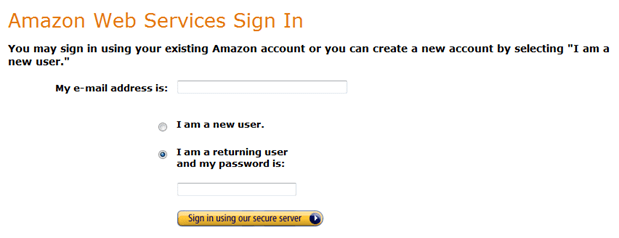
- Sign into the AWS Console
-
Choose a Region before launching your new EC2 instance.

- Create EC2 Linux Micro Instance for WordPress:
- To start a new EC2 instance click on the Launch Instance button.

-
In the “Request Instances Wizard” tab to the Community AMI’s then filter using “wordpress” then choose the AMI:
bitnami-wordpress-3.1-0-linux-ubuntu-10.04-ebs (ami-30f18f62)

- For your Free instance, choose the number of instances: 1, Availability Zone: No Preference and Instance Type: Micro (t1 micro, 613MB).

- Shutdown Behavior option should be stop, and all other options Use Default.

-
Add in a tag key = Name and value = Webserver.

-
Create a new Key Par call it the name of the website then create and save this file somewhere on your local machine that can be grabbed latter. E.g xyz.pem

-
Adjust Security Groups,
Add rules for SSH, HTTP, HTTPS but leave the source as 0.0.0.0/0

- Now Lunch the instance

- Assign Elastic IP then Associate Address with your EC2 Instance
- Click on Instances within the EC2 console to find the Public DNS.

- Install Open SSH on Windows
-
Set pem file to Read by owner
chmod 400 xyz.pem
-
SSH in to the instance
ssh -i xyz.pem bitnami@ec2-<public DNS>.ap-southeast-1.compute.amazonaws.com
-
Move WordPress to run at the root of the apache web server by editing httpd.conf file using vi
sudo vi /opt/bitnami/apache2/conf/httpd.conf
DocumentRoot “/opt/bitnami/apache2/htdocs”
To
DocumentRoot “/opt/bitnami/apps/wordpress/htdocs”
<Directory />
Options Indexes MultiViews +FollowSymLinks
AllowOverride All
Order allow,deny
Allow from all
</Directory>
<Directory “/opt/bitnami/apache2/htdocs”>
To
<Directory “/opt/bitnami/apps/wordpress/htdocs”>
Comment out:
#Include “/opt/bitnami/apps/wordpress/conf/wordpress.conf”
-
Create an .htaccess file for WordPress
This also enables you to have pretty permalinks like myblog.com/tour
Add .htaccess file to WordPress dir
in /opt/bitnami/apps/wordpress/htdocs/.htaccess
# BEGIN WordPress
<IfModule mod_rewrite.c>
RewriteEngine On
RewriteBase /
RewriteCond %{REQUEST_URI} !=/server-status
RewriteCond %{REQUEST_FILENAME} !-f
RewriteCond %{REQUEST_FILENAME} !-d
RewriteRule . /index.php [L]
</IfModule>
# END WordPress
-
Configure WordPress to know its own DNS entry
sudo vi /opt/bitnami/apps/wordpress/htdocs/wp-config.php
define(‘WP_HOME’, ‘http://www.ringio.com’);
define(‘WP_SITEURL’, ‘http://www.ringio.com’);
-
Install Filezila
Public DNS
SSH Username: bitnami
Password: <Blank>
-
delete the /opt/bitnami/updateip file. Otherwise, restarting the instance, Bitnami resets the wp_options values to the Public DNS server name.
sudo rm /opt/bitnami/updateip
-
Install EMS MySQL Manager
How to Connect to BitNami MySQL Remotely
-
Run this SQL script to set the Pubic IP Address with WordPress
update wp_options set option_value = ‘http://www.agileweboperations.com’ where option_name in (‘siteurl’, ‘home’);
-
Configure WordPress with the Pubic IP Address
sudo vi /opt/bitnami/apps/wordpress/htdocs/wp-config.php
define(‘WP_HOME’, ‘http://www.ringio.com’);
define(‘WP_SITEURL’, ‘http://www.ringio.com’);
- Reboot the instance
- In your Browser type the public ip and see if WordPress is running correctly at Root Directory
-
Login into Woresspress using default bitnami username
Username: user
Password: bitnami
- Add a new use into WordPress with Role of Administrator
- Then remove default bitnami username from WordPress by login in as your new username
- Make a DNS A record for the domain host provider, and use the elastic IP.
Migration
- Both wordpress on your old site and on AWS are the same due to database compatible issues
-
Copy your \wp-content\upload from your old site locally to reload on AWS
sudo chmod 755 /opt/bitnami/apps/wordpress/htdocs/wp-content/
Install and download all plugins to your AWS Worspress instance
- Download or install your old theme and plugins
- Export your Old WordPress database using MyPHPAdmin
- Run the Export SQL Script on the AWS WordPress Instance using your Remote SQL Manager
-
The rerun the SQL script to set the Pubic IP Address with WordPress
update wp_options set option_value = ‘http://www.agileweboperations.com’ where option_name in (‘siteurl’, ‘home’);
To Finish
-
When your domain has delegated run this script again with your domain
update wp_options set option_value = ‘http://www.website.com’ where option_name in (‘siteurl’, ‘home’);
-
Configure WordPress with the Pubic IP Address
sudo vi /opt/bitnami/apps/wordpress/htdocs/wp-config.php
define(‘WP_HOME’, ‘http://www.website.com’);
define(‘WP_SITEURL’, ‘http://www.website.com’);
Links
Amazon Web Services
http://aws.amazon.com/
AWS Management Console
http://aws.amazon.com/console/
Bitnami Wordpres Stack
http://bitnami.org/stack/wordpress
OpenSSH
http://www.openssh.com/
http://sshwindows.webheat.co.uk/
Filezilla
http://filezilla-project.org/
How to Connect to BitNami MySQL Remotely
http://wiki.bitnami.org/cloud/how_to_connect_to_your_amazon_instance#How_to_connect_to_the_BitNami_MySQL_remotely.3f
EMS MySQL Manager
http://www.sqlmanager.net/products/mysql/manager
You must be logged in to post a comment.